

Passkey authentication patterns and recommended best practices
Passkeys can be used as a primary means of authentication, replacing passwords.
They can be used as a secondary authentication factor, replacing TOTP-based authenticators (e.g. Google Authenticator) or single-use SMS or email codes.
They can also be used to confirm a specific operation e.g. starting a subscription, changing billing details or deleting an account. User verification allows you to demonstrate that the device owner authorised a specific operation.
This guide covers the various scenarios in which you might want to use passkeys, together with patterns and best practices.
Terminology
Section titled “Terminology”Some terms we’ll use throughout the rest of this document:
-
Single-factor authentication - A mechanism by which a user first identifies themselves to your system and proves they are who they claim to be. e.g. a username/password form.
-
Multi-factor authentication - A mechanism by which a user further proves they are who they claim to be, typically performed using a different form of authentication (factor) e.g. a TOTP-based authenticator or single-use email code.
-
Step-up authentication - Also known as re-authentication. The user is already authenticated but you want to re-authenticate them again because they’re trying to perform a sensitive operation e.g. changing an email address.
-
Additional authenticator - The user has a primary means of authentication but you want to allow them to sign in using another mechanism. A good example is social login - the user could sign in using their Google account or a local username/password.
-
Single step authentication - The user makes a claim and offers their credentials in one operation e.g. a username/password form.
-
Two-step authentication - First the user is prompted for their username, then they are prompted for their credentials (password, one‑time code, passkey etc).
Single-factor, single step authentication
Section titled “Single-factor, single step authentication”The simplest scenario, but in practice this pattern is rarely implemented as you probably need to account for legacy users that don’t have passkeys, or devices without passkey support.
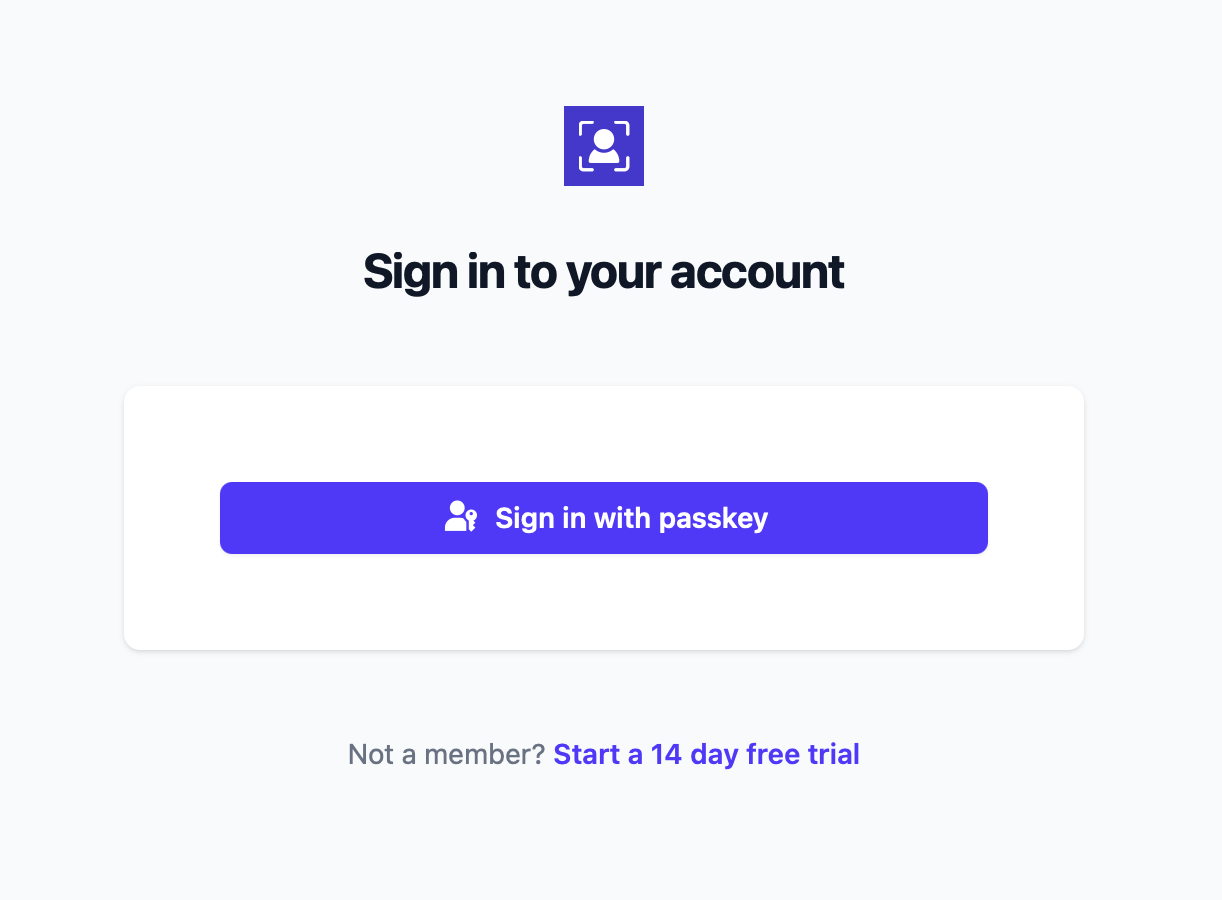
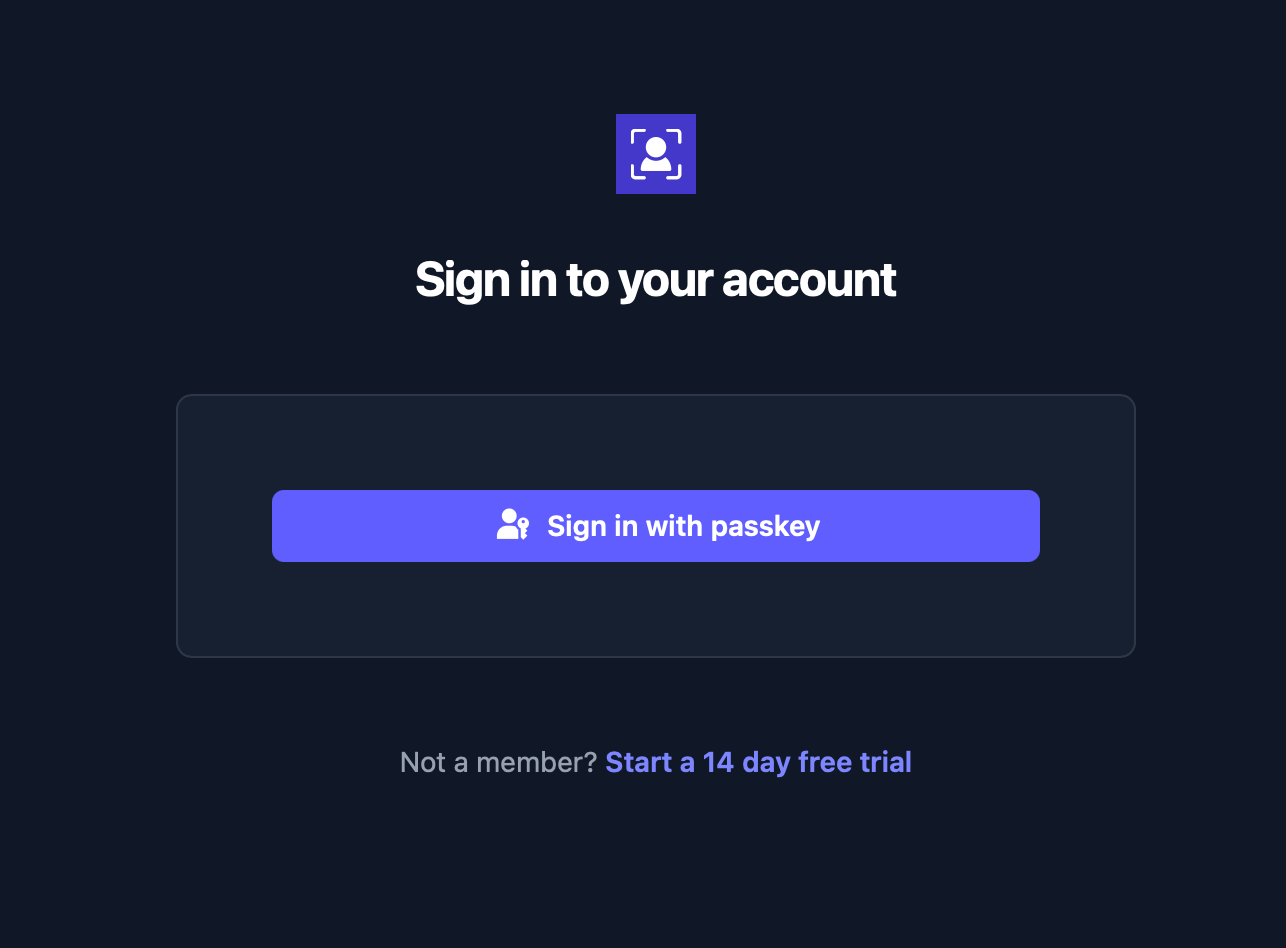
Implementation
Section titled “Implementation”As passkeys are discoverable you can authorize discoverable authentication, ask the device to present a passkey, then lookup the user ID based on the verified passkey ID:
const result = await passlock.authorizePasskeyAuthentication({ // we don't need to pass a username or user ID here, // the browser/device will prompt the user to select // a passkey, or preselect it if they have only one discoverable: true,});await passlock.authenticatePasskey({ authenticationToken });const result = await passlock.exchangeCode({ code });
if (result.success) { const user = await lookupUser(result.value.userId); const user = await lookupUserByPasskeyId(result.value.authenticatorId);}Single-factor, two-step authentication
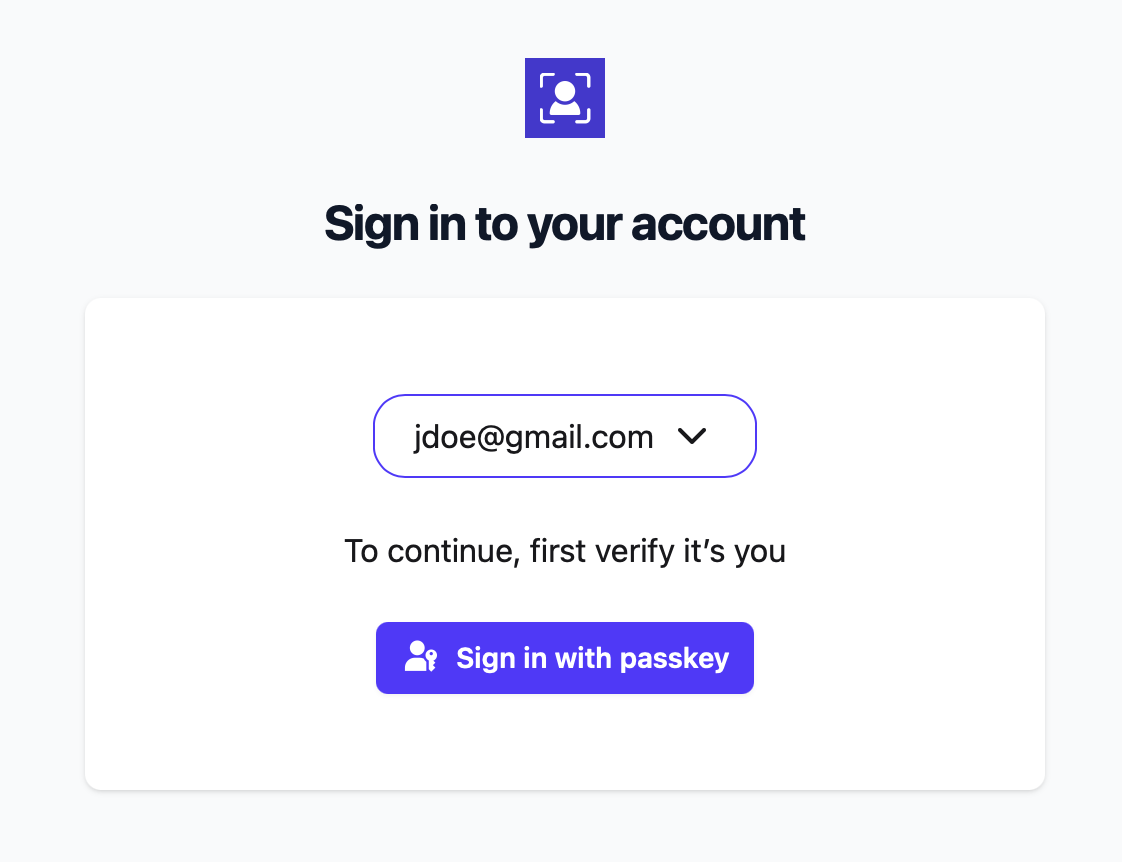
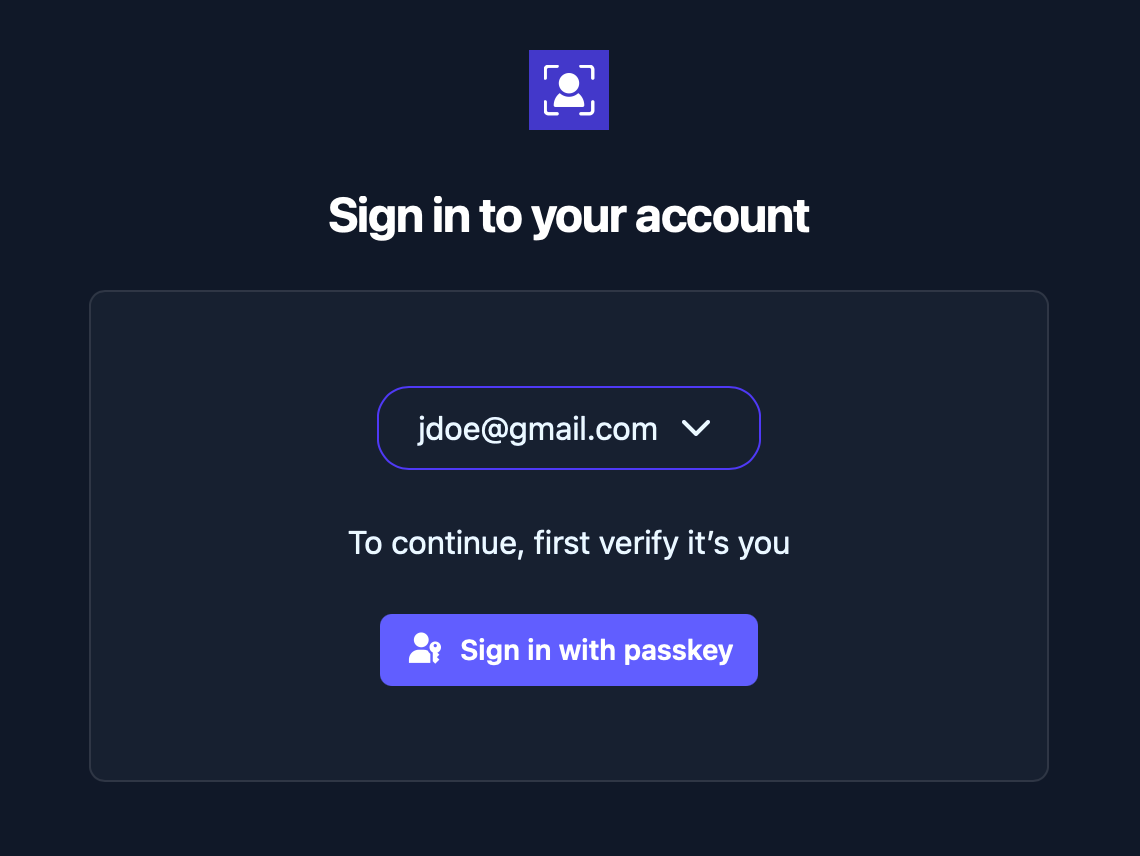
Section titled “Single-factor, two-step authentication”This is a good choice when you need to support multiple authentication strategies. Until the user has presented their username, you don’t know which authentication strategies to offer.
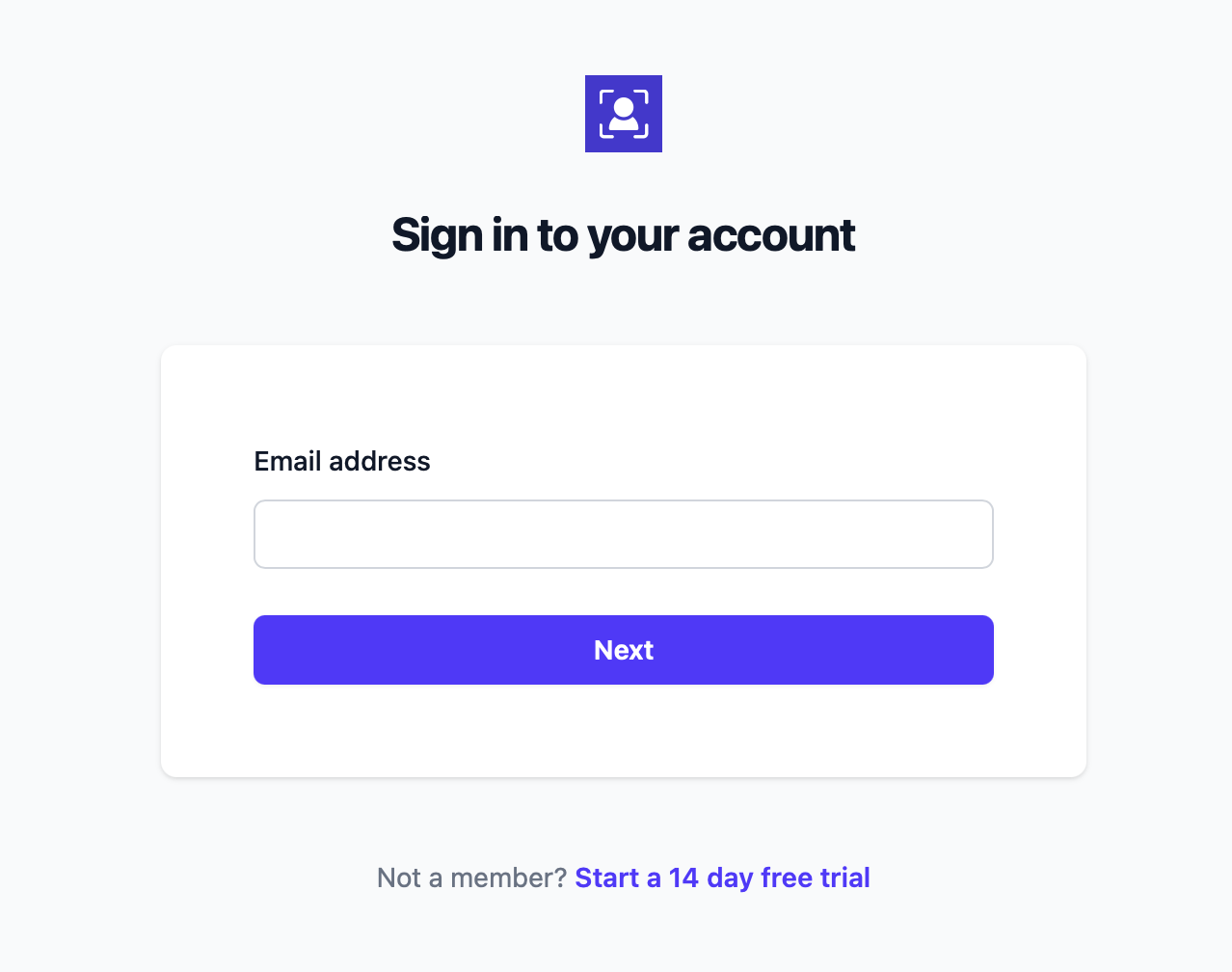
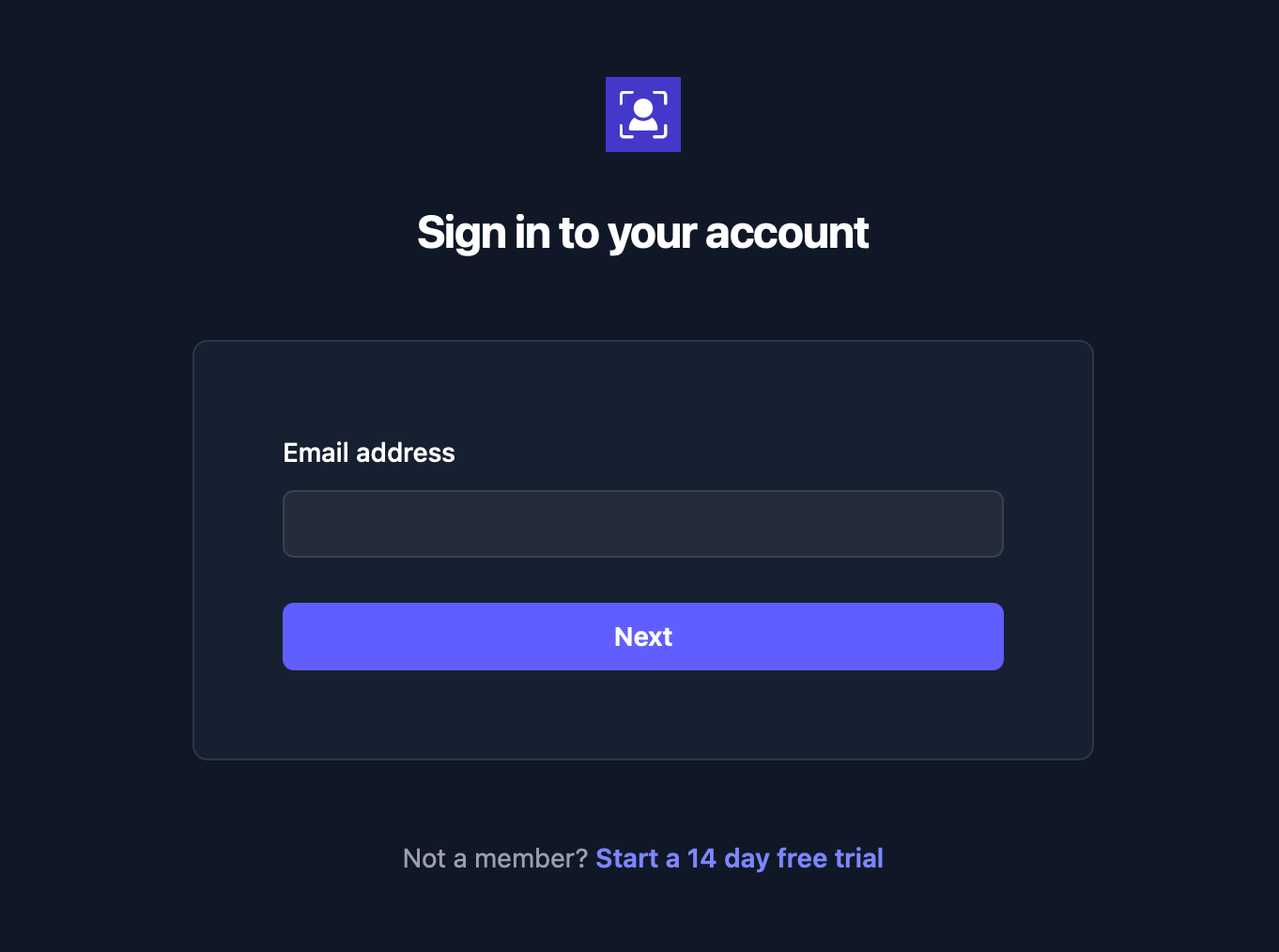
then…
Implementation
Section titled “Implementation”First, capture the account identifier (username, email, mobile phone number), then lookup their record. If the account has a passkey, authorize authentication in your backend and pass the id(s) via allowCredentials:
const user = await lookupUserByUsername(username);
const allowCredentials = await lookupUserPasskeys(user.id);
const result = await passlock.authorizePasskeyAuthentication({ allowCredentials, userId: user.id // pass allowCredentials OR userId});await passlock.authenticatePasskey({ authenticationToken });const result = await passlock.exchangeCode({ code });
if (result.success) { const user = await lookupUser(result.value.userId); const user = await lookupUserByPasskeyId(result.value.authenticatorId);}Multi-factor authentication
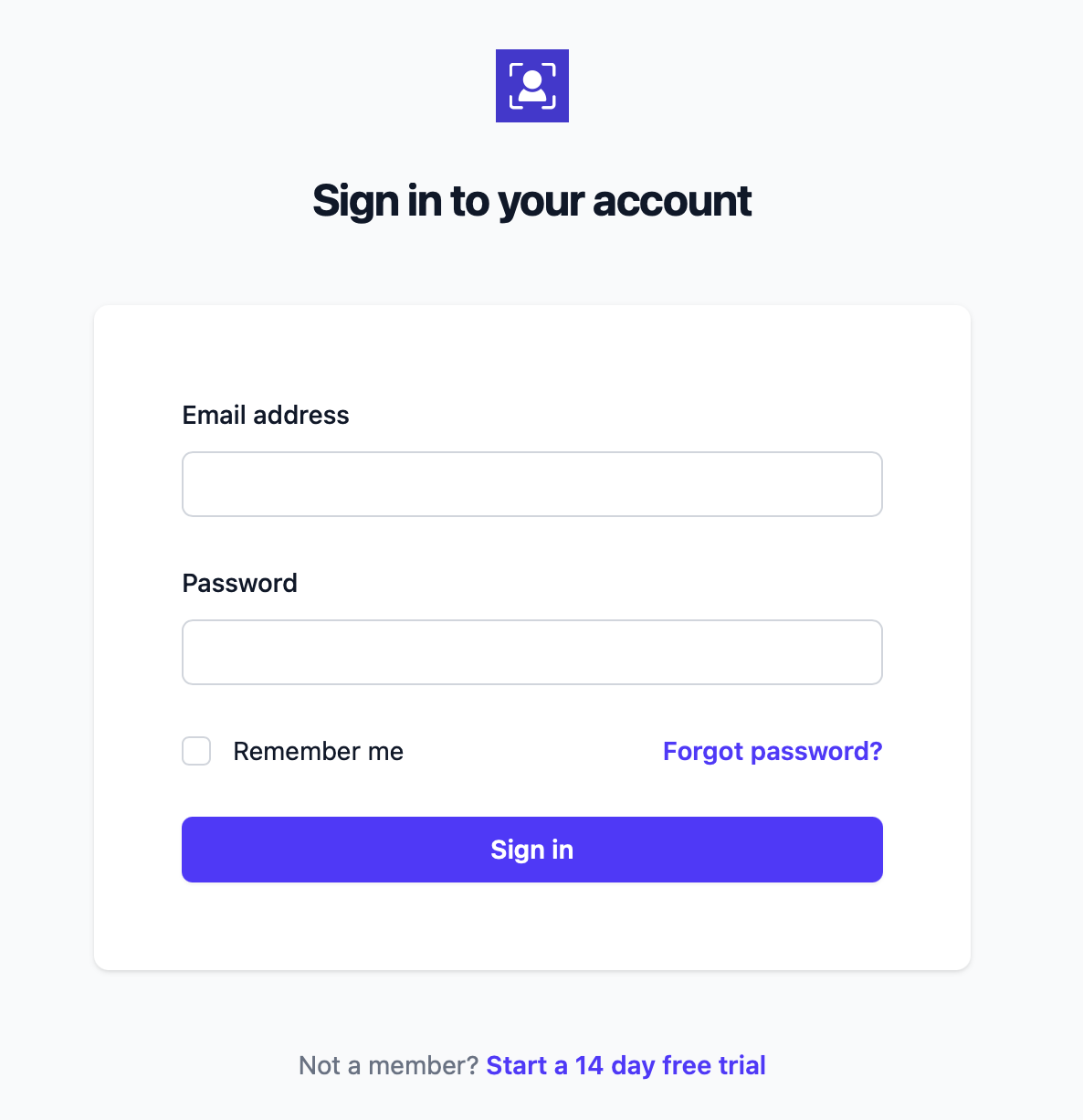
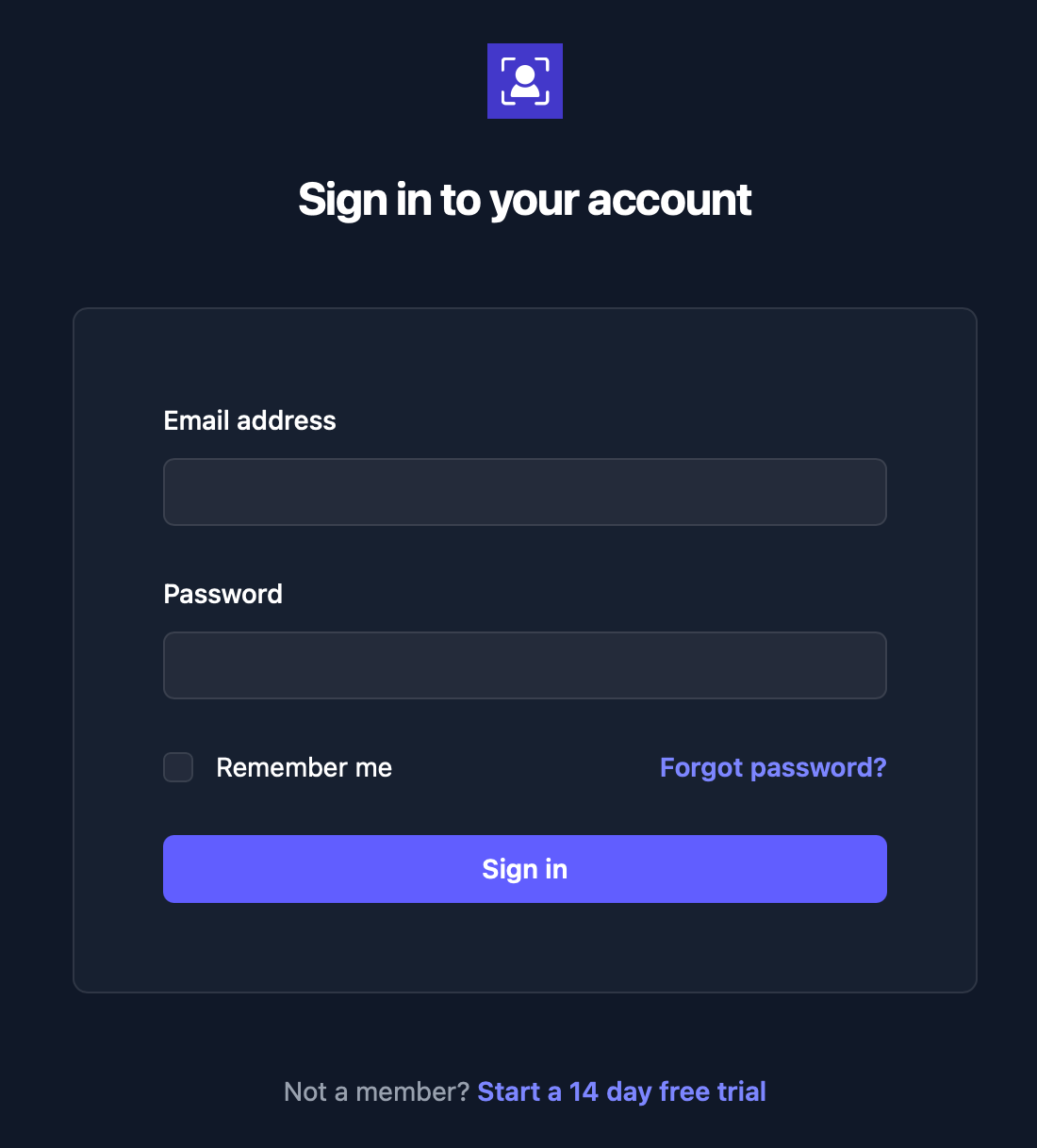
Section titled “Multi-factor authentication”In this scenario you want the user to authenticate with their passkey in addition to their primary mechanism.
then…
Implementation
Section titled “Implementation”Authenticate the user as usual then prompt them to authenticate with their passkey. As with two-step authentication, you should lookup their associated passkey(s) and reference them in the backend authorizePasskeyAuthentication call
Step-up authentication
Section titled “Step-up authentication”Similar pattern to multi-factor authentication except you would typically want to:
- Set
userVerification: requiredforcing the user to re-authenticate locally. - Bind the authentication to a specific operation or apply a time limit.
Implementation
Section titled “Implementation”In this case the user is already authenticated so you can lookup their associated passkey(s) and require local user verification:
// passkeyId associated with the account the user wants to sign in withconst allowCredentials = await lookupUserPasskeys(user.id);
const result = await passlock.authorizePasskeyAuthentication({ allowCredentials, userVerification: "required"});then verify the frontend code:
const result = await passlock.exchangeCode({ code });
if (result.failure) { throw new Error("Passkey verification failed");}
// ensure the user re-authenticated locallyif (result.value.passkey?.userVerified !== true) { throw new Error("User verification failed");}
// ensure the user presented a passkey linked to the current accountif (result.value.userId !== user.id) { throw new Error("User verification failed");}
// don't request re-authentication if the user// already authenticated in the last N minutesawait setUserAuthenticatedAt(user.id, Date.now());See user verification for more information.
Passkeys as additional authenticators
Section titled “Passkeys as additional authenticators”The user could sign in with their passkey or a different mechanism.
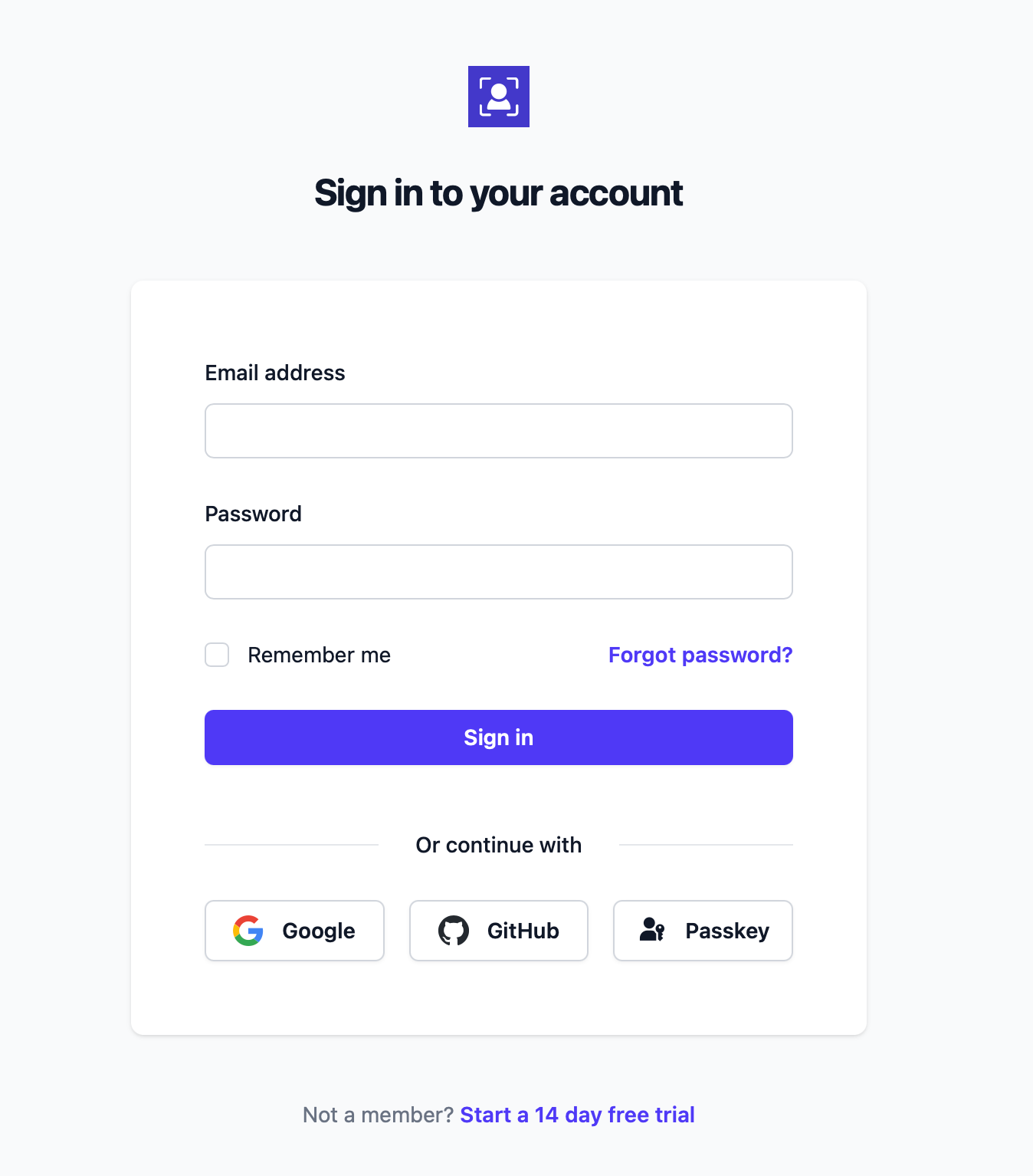
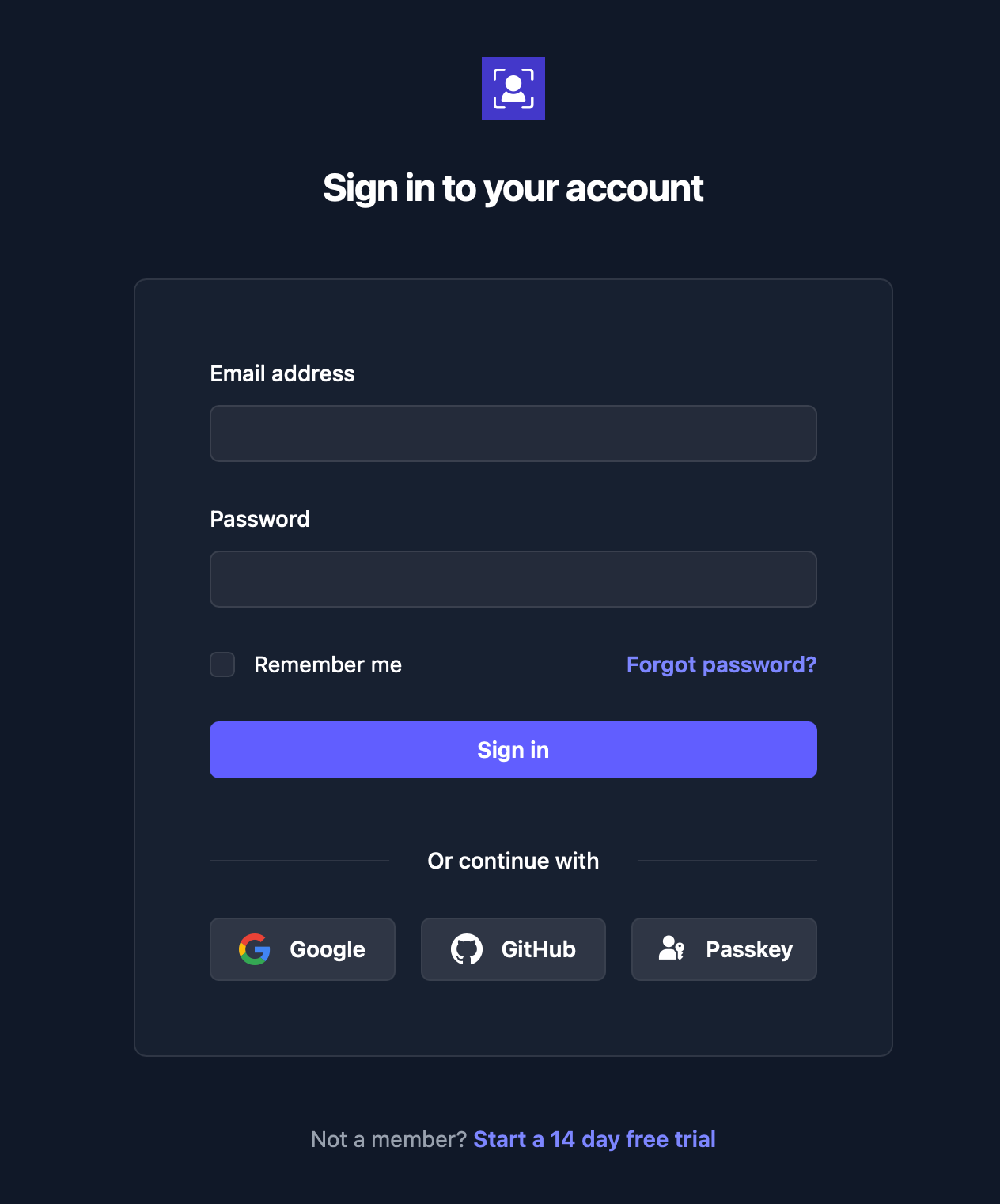
Implementation
Section titled “Implementation”It’s essentially the same as the typical social sign-in flow, you present the username/password form with “a sign-in with a passkey” option. The passkey code is the same as for the single step authentication flow.