

Using passkey autofill to support passkeys alongside passwords
Passkey autofill essentially tells the browser to bypass a login form and use a passkey if one exists on the device. The moment the user interacts with the login form, the browser will prompt them to sign in using the passkey.
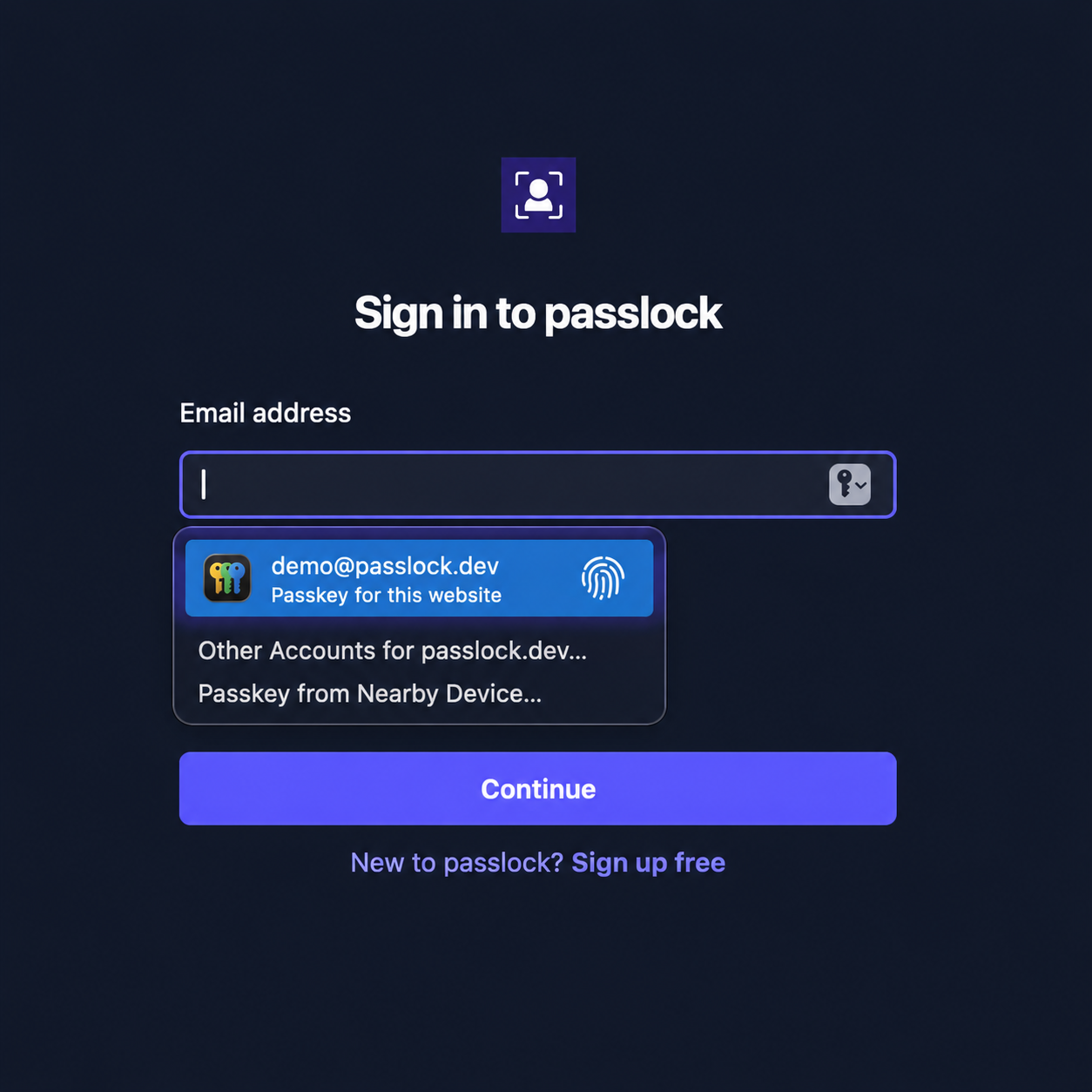
To use autofill, authorize discoverable authentication in your backend with mediation: "conditional", then call authenticatePasskey with the returned authenticationToken. Start this on page load so it’s ready by the time the user interacts with your login form. e.g.
import { Passlock } from "@passlock/server";
const passlock = new Passlock({ tenancyId, apiKey });
const result = await passlock.authorizePasskeyAuthentication({ // need to pass both options here discoverable: true, mediation: "conditional",});import { Passlock } from "@passlock/browser";
const passlock = new Passlock({ tenancyId });
document.addEventListener('DOMContentLoaded', async () => { // see backend/authenticate.ts above const authenticationToken = await fetchTokenFromBackend();
// the promise will remain pending // until the user interacts with the form const result = await passlock.authenticatePasskey({ authenticationToken });
if (result.success) { await submitCodeToBackend(result.value.code); }})You also need to include the webauthn token in the autocomplete attribute on the relevant login form field e.g.
<input type="text" name="username" autocomplete="username webauthn" />Why use autofill?
Section titled “Why use autofill?”Many web apps allow users to sign in via different mechanisms e.g. social, passwords, one-time codes etc. You might choose to present users with a login screen in which they can select how they want to log in:
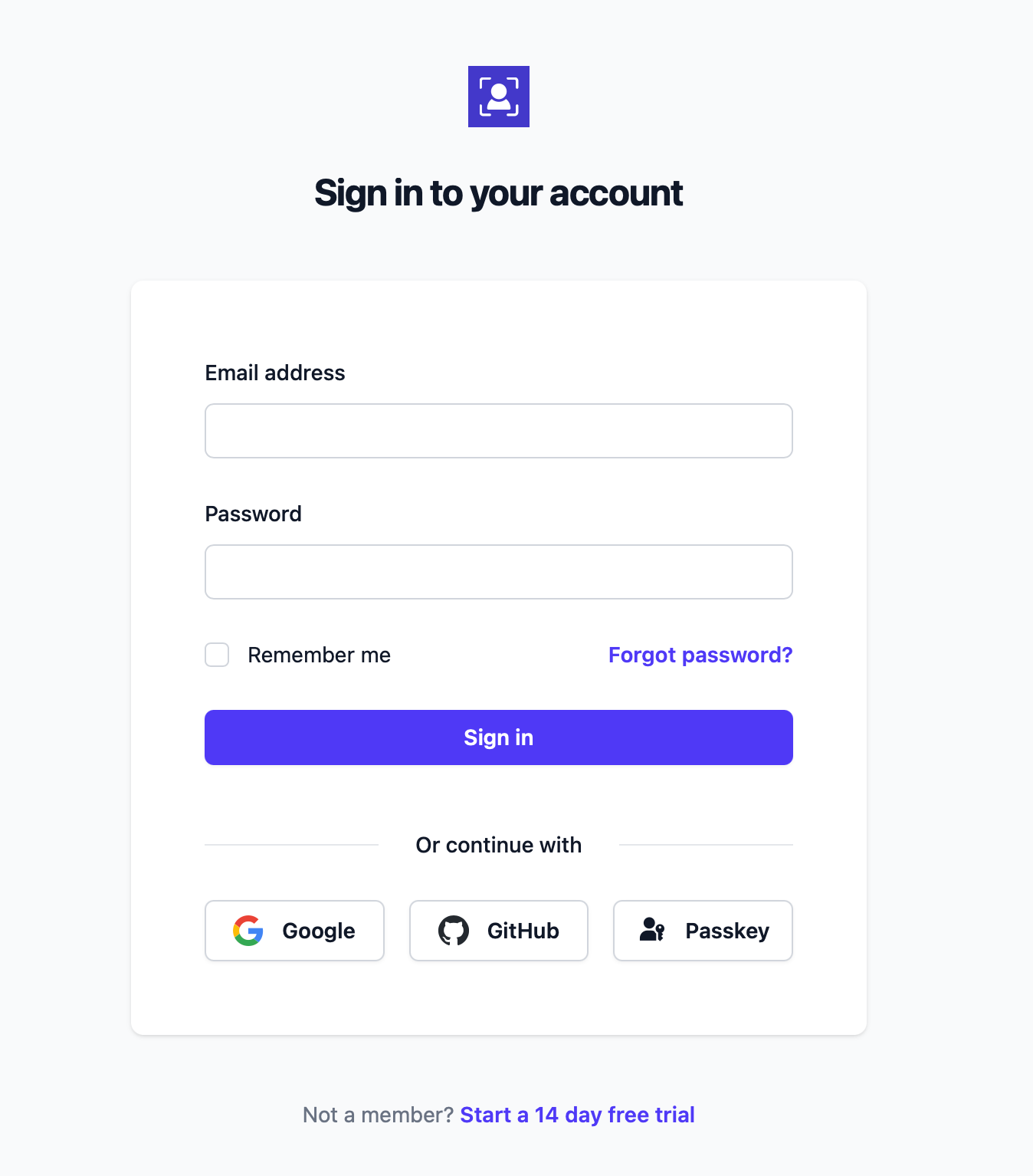
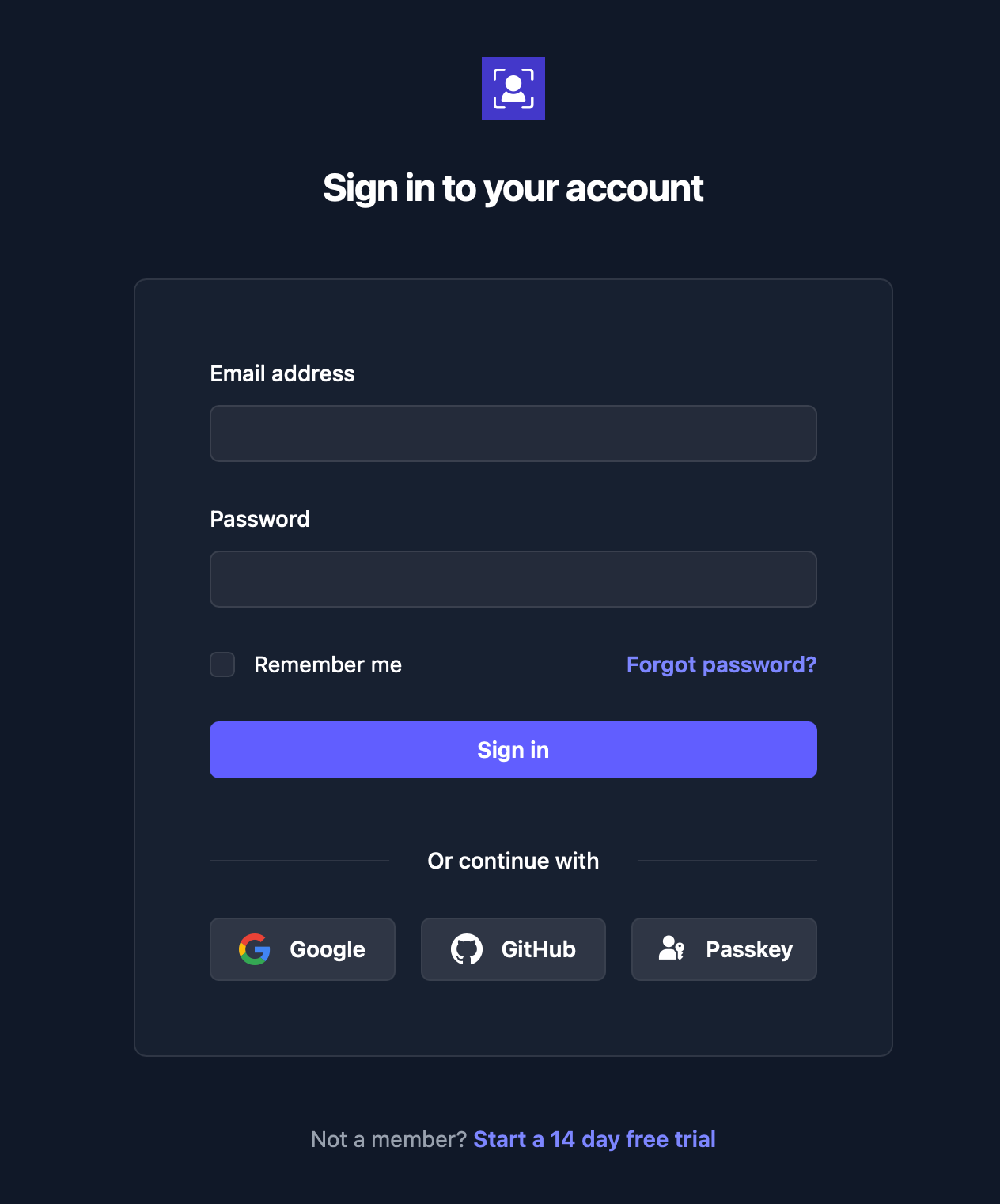
This can present a challenge for the user as they might not remember which mechanism they used during signup. Did they register a passkey or not? If autofill is employed, the browser/device will decide for them, prompting them to use a passkey if one exists on the device.
Downsides and workarounds
Section titled “Downsides and workarounds”Browser support for autofill is somewhat flaky. Additionally you need to ensure a couple of things happen before the user interacts with the login form:
- The relevant client-side JavaScript has loaded
- The device has time to check for registered passkeys
You can work around these issues by waiting for the JavaScript to load before enabling the login form. Alternatively you can display the form but wait for the JavaScript to load then programmatically add the webauthn token to the relevant field’s autocomplete attribute.
Missing server-side passkey
Section titled “Missing server-side passkey”A user might register a passkey then delete the server-side component e.g. via a “my passkeys” page in your app. They will end up with a passkey on their device, which the device will use for autofill, but there will be no corresponding record in your backend systems. You need to account for this scenario and wherever possible use our local passkey removal function to align your backend records with the user’s local device.
Usability concerns
Section titled “Usability concerns”Tech-savvy users should have no trouble with autofill, however some users find it confusing. They’re trying to enter their credentials but the browser tries to fill the username field with a passkey.
Alternatives
Section titled “Alternatives”You’ll need to decide if the benefits of rapid, frictionless passkey login outweigh the potential drawbacks and usability issues. If you choose not to adopt autofill, two-step login can be a more reliable and intuitive flow for many users.