

Allow users to sign in with a passkey stored on a different device (roaming authenticator flow)
Imagine this scenario:
- A user signs up to your app using their personal iPhone. A passkey is registered on the phone and synced to their iCloud account.
- They log in from their personal MacBook, the passkey is downloaded from their iCloud account and Safari presents it during the authentication ceremony.
- So far, all good. But what happens if they try to sign in using their work MacBook? Safari can’t download the passkey as it’s linked to a different iCloud account.
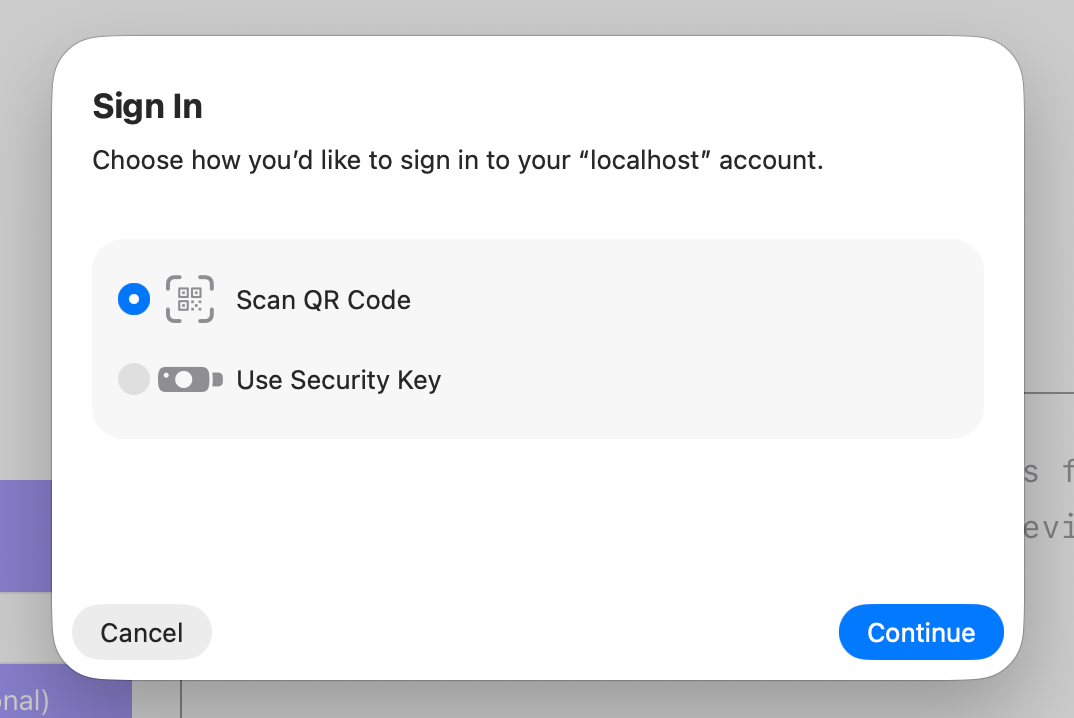
Passkeys support this scenario via a concept known as the roaming authenticator flow, which allows users to log in using a different device. In this scenario, the user could use their personal iPhone to sign in on their work MacBook.
Implementation
Section titled “Implementation”You don’t have to do anything. During authentication the device (work MacBook in this example) will recognise that there is no passkey registered and prompt the user to adopt the roaming authenticator flow.
Pre-select the passkey
Section titled “Pre-select the passkey”If you know the user ID, either because the user is already signed in, or you’re adopting a two-step authentication flow, you can preselect the valid passkey IDs using the allowCredentials property.
This is beneficial because the user will be prompted to adopt the roaming flow, even if they have an unrelated passkey registered on the device.
Allow users to register multiple passkeys
Section titled “Allow users to register multiple passkeys”The roaming flow is useful for one-offs, but becomes tiresome when the user often needs to go through the process. That’s why it’s a good idea to allow users to register more than one passkey.
Following our example, your user would sign in with their personal passkey using the roaming flow, then register a new personal passkey passkey, which will be stored on their work computer. Next time they try to sign in they will be able to use the new personal passkey, bypassing the roaming authenticator flow completely.